Downloading and installing
Getting started
There are two programs to be installed - just follow these simple instructions...
On the computer you will be running the Concierge Database Server, click the following link and select the option to RUN depending on the browser you're using. The installation will then download and run. The setup Wizard will now guide you through the installation...
Download CDS (database server - install this first)
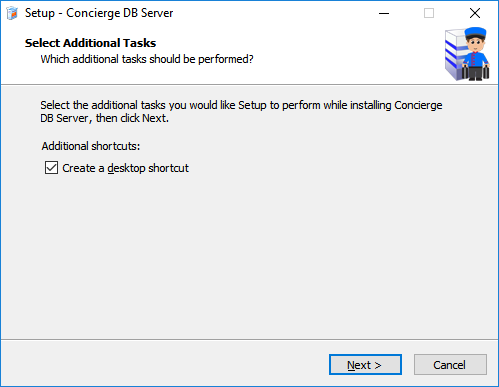
Continue pressing the 'Next' button for each step of the install
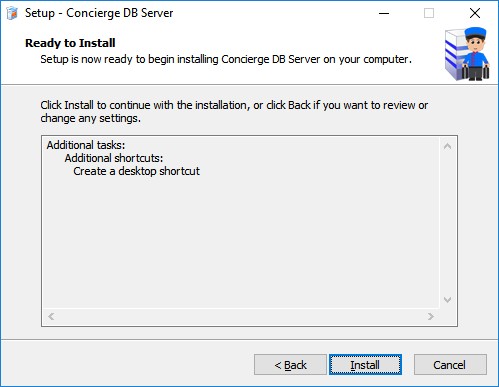
Until you reach the final page (see screen below), where you press the 'Install' button.

On completion, the following screen will appear (see below) - Enter in your Company Email address, Website, Phone and Fax. Then click the 'Start Setup' button. This information is stored within the program.

The following screen will appear. Giving you 3 tab options. The last tab option 'License', allows you to purchase the software directly after your 14 day trial

The next step is to install Concierge, click the following link and select the option to RUN depending on the browser you're using. The installation will then download and run. The setup Wizard will now guide you through the installation...
Download Concierge (main program install this second)
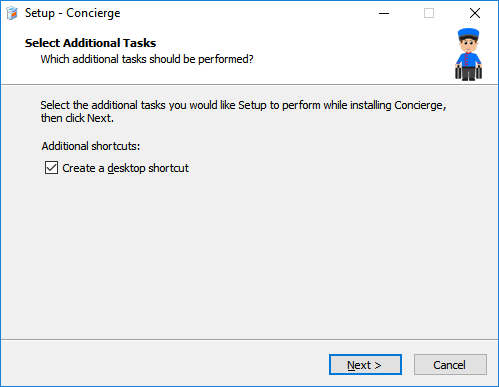
Continue pressing the 'Next' button for each step of the install
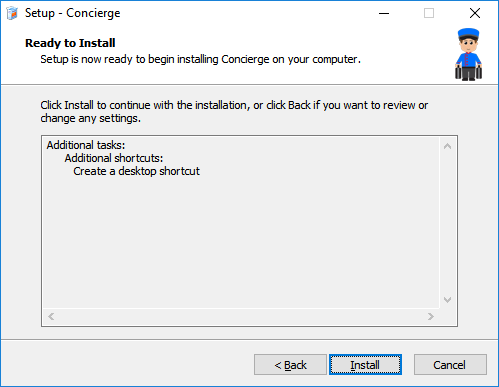
After the install has finished you will see the final page. Click the 'Finish' button and the Concierge program will run

The following screen will appear with the Administrator Username and Password automatically generated for Login. Just press 'Login'
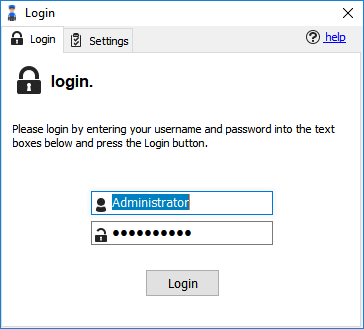
The Concierge program will now start up automatically.